EAB
EAB provided a data dashboard for academic leadership. Utilization was incredibly low; we needed to learn why before we could address this problem. I conducted user research, which showed that the existing tool didn’t show how to use business data and apply it to real-world situations, like hiring staff or course planning. Getting this information to non-technical users was critical to enable them to use the data effectively.
What’s in this document
- Discovering features with user research
- Dashboard design with samples
- Results
Discovering features
After I understood that the tool wasn’t supporting day-to-day business, I worked with users to understand what features they’d actually use.
First, I administered a guided usability test, interviewing customers and learning how they used the dashboard tools, what they knew how to do, and what confused them. Observing users at work revealed that the product presented data in a highly abstract fashion. There was no explanation to help users understand what to do with the information that was presented.
This research enabled me to outline improvements. I designed low-fidelity wireframes with a proposed feature set and led a workshop for clients to co-design and fine-tune those features. The workshop elicited a true list of day-to-day tasks. In the process I discovered additional business needs; a need for good, simple UX writing, and ways to accompany data with step-by-step guidance.
Finally, I performed a Kano analysis to identify desirable, indifferent, and detractor features.
Dashboard design
I took a five-part approach to designing the dashboard:
- Display the data that efficiently indicates issues and action items.
- Write microcopy to provide context for the tables, charts, and graphs.
- Provide a narrative, referring to data selection and outputs that tell users what each item means and what they should do in reaction.
- Develop templates that enable customers to use the data to perform day-to-day work.
- Include multiple teams in product planning to elicit viewpoints from all stakeholders.
Display the data
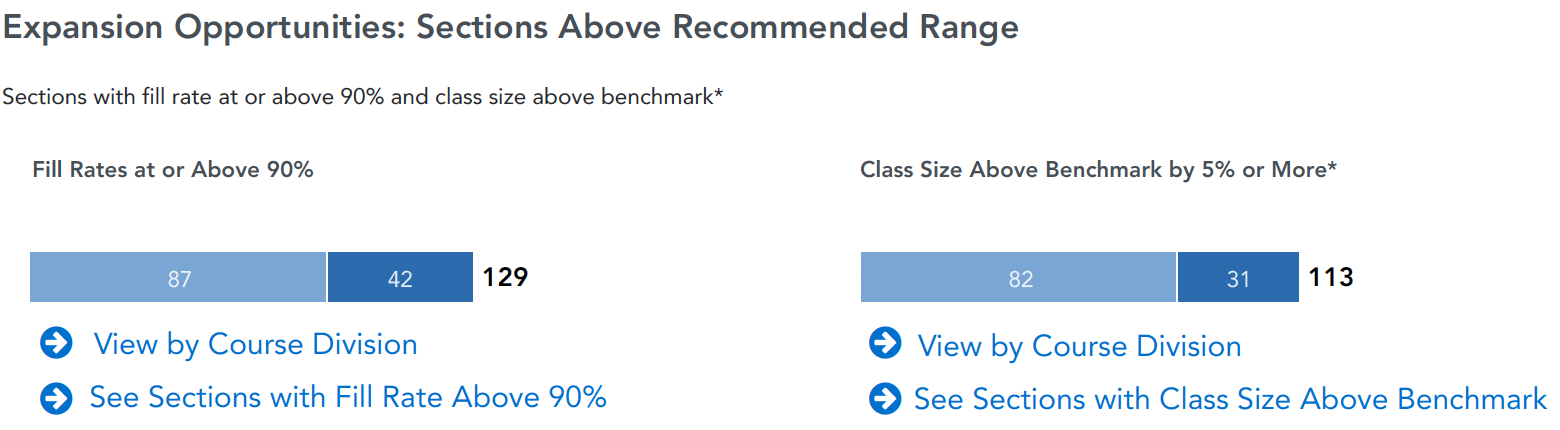
During interviews and testing, customers described feelings of overload. Because small multiples of information increase understanding and comprehension, I divided reports into units of 2 to 5 pieces of information, organized by function and purpose. I redesigned the data display to enable users to concentrate on one aspect of data analysis at a time so they could understand what the data meant and how to address it.
Write microcopy
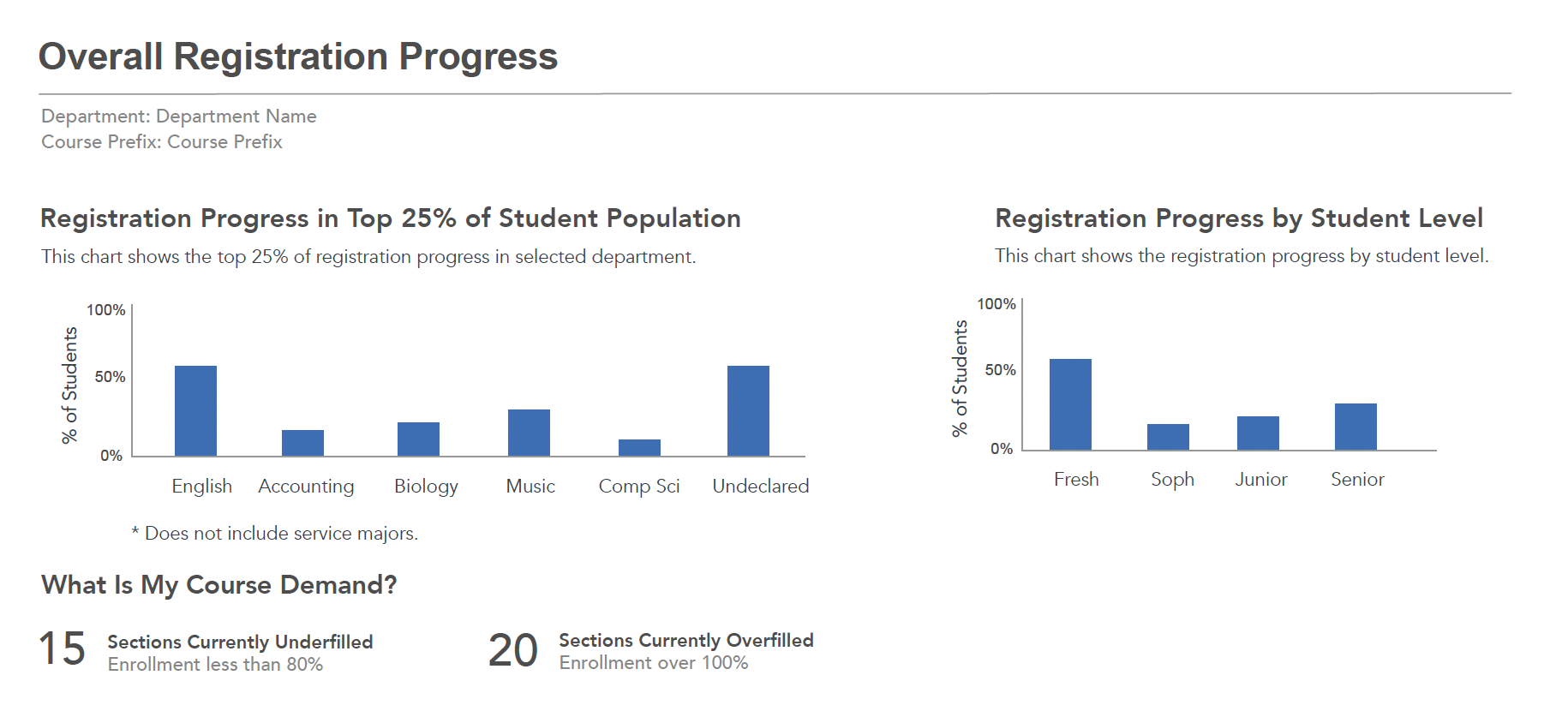
Users reported that they didn’t understand what the charts and graphs represented. I wrote microcopy to explain:
- The purpose of each data element: Why a piece of information was important and how it contributed to the decisions users needed to make.
- Uniformity: Every graph needed a descriptive, plain language title, generally in the form of a question. Every data entry point asks a question so users can understand why they are providing information and what results they can expect.
- The context for interpreting data search results: First, every result repeated the user-selected parameters to verify that the outputs were reasonable, accurate, and as expected. Next, each result explained next steps based on the data. Users were able to make truly data-informed decisions for the first time.
An entire flow shows the process:
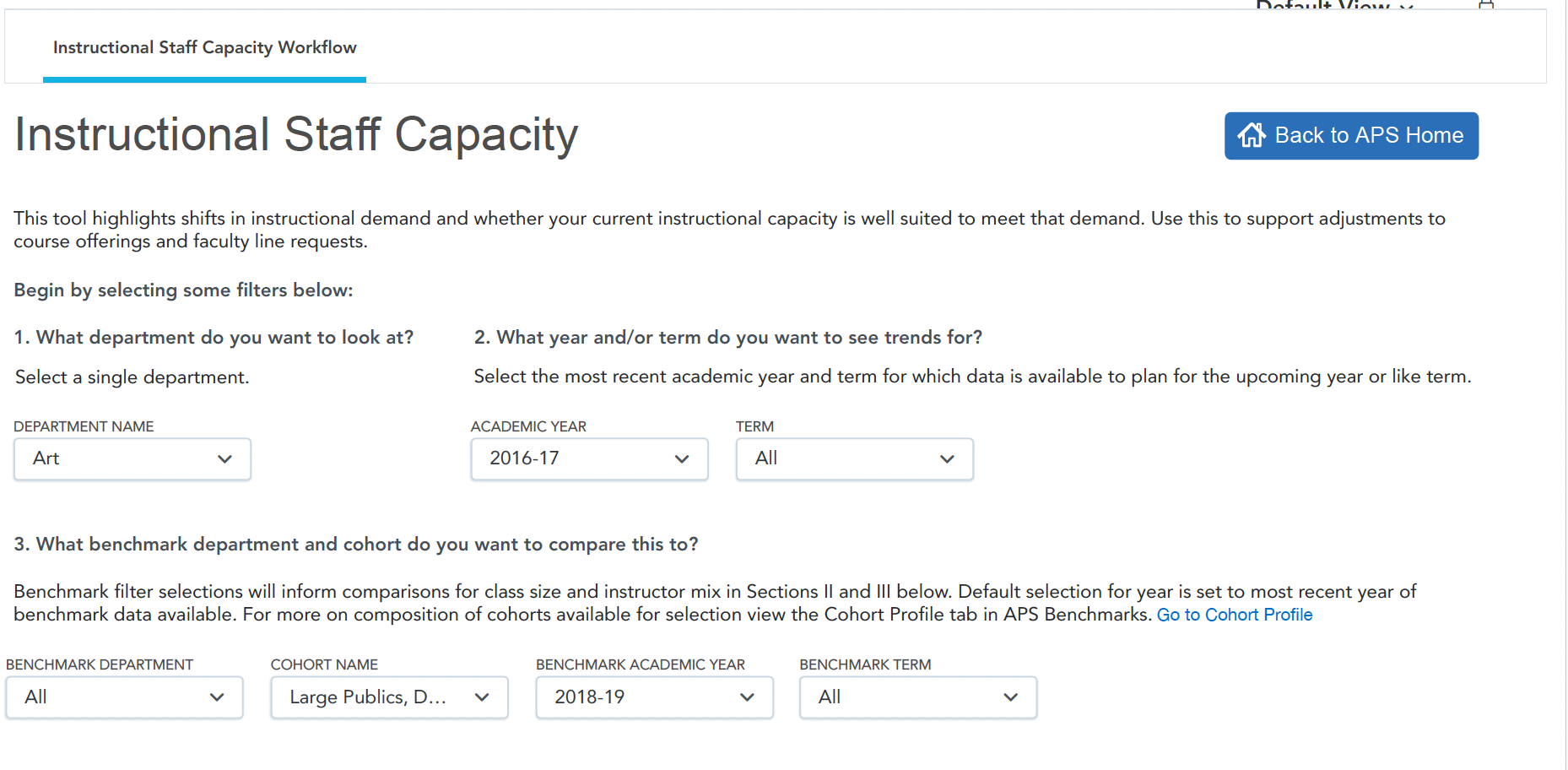
Enter data specifications, with explanations about what each one means and what results it will produce.
Summary with copy on what numbers mean, and what to do about them.
Recommendations on what to do next, including charts/graphs.
Results
- Engagement increased 200% over six weeks.
- The new tool enabled users to efficiently complete tasks such as course planning, hiring, and planning for demand for majors — day-to-day tasks that previously took months now took a week or less.
- Within two weeks of launch, the tool had provided one understaffed customer enough data to justify 20 new hires.